> ## Documentation Index
> Fetch the complete documentation index at: https://kiro.dev/llms.txt
> Use this file to discover all available pages before exploring further.
# Chat
> Learn how to use Kiro's chat interface for contextual conversations, development assistance, and code generation
Kiro offers a chat panel where you can interact with your code through natural language conversations. Just tell Kiro what you need. Ask questions about your codebase, request explanations for complex logic, generate new features, debug tricky issues, and automate repetitive tasks—all while Kiro maintains complete context of your project.
[Video](https://kiro.dev/videos/kiro-agent.mp4)
## Key features
- [Contextual Understanding](https://kiro.dev/docs/ide/chat/autopilot.md) — Ask questions about your entire codebase, get explanations, or request edits with full awareness of your project structure
- [Autopilot](https://kiro.dev/docs/ide/chat/autopilot.md) — Toggle between autonomous execution and supervised approval of every change
- [Checkpoints](https://kiro.dev/docs/checkpoints.md) — Rewind your codebase and conversation to any earlier point when an approach doesn't work out
- [Starting a session](https://kiro.dev/docs/ide/setup.md#starting-a-session) — Start with free-flow chat or pick a built-in workflow agent — and switch agents at any point mid-session
- [Dev Servers](https://kiro.dev/docs/ide/chat/dev-servers.md) — Run long-running processes in the background without blocking your workflow
## Getting started
### Accessing chat
There are multiple ways to access the chat in your development environment:
1. **Keyboard Shortcut**: Press Cmd+L (Mac) or Ctrl+L (Windows/Linux) to open the chat panel
2. **Command Palette**: Press Cmd+Shift+P (Mac) or Ctrl+Shift+P (Windows/Linux) and search for `"Kiro: Open Chat"`
3. **Secondary Side Bar**: Click the Kiro chat icon toggle using Cmd+Opt+B (Mac) or Ctrl+Alt+B in the top bar on the right to open the chat panel
### Multi-language support
Kiro chat supports conversations in multiple natural languages. Supported languages include Mandarin, French, German, Italian, Japanese, Spanish, Korean, Hindi, and Portuguese, with more languages available. You can start a conversation in your preferred language, and Kiro will automatically detect it and respond in the same language. This capability is powered by the underlying large language model (LLM) used.
### Your first conversation
Once the chat panel is open, you'll see the **"Let's build"** welcome screen with an optional built-in workflow selector.
### Choosing a workflow
When starting a new session, you can optionally select a built-in workflow agent to switch the session into a specialized mode:
| Built-in workflow | Description |
|----------|-------------|
| **Spec** | Structured feature development — generates requirements, design, and tasks |
| **Plan** | Plan-only mode — breaks ideas into an implementation plan without making changes |
| **Bug Fix** | Structured bug-fix workflow — investigate, diagnose, and resolve bugs |
| **Quick Spec** | Fast spec workflow — clarify, then auto-generate requirements, design, and tasks |
Selecting a built-in workflow is optional. If you skip it, the session uses the **Default** agent for general coding assistance.
These session modes are distinct from [declarative workflows](https://kiro.dev/docs/workflows.md), which execute reusable JSON or YAML recipes as durable trees of separate step sessions.
### Switching agents mid-session
You can swap agents without losing your train of thought. The agent selector sits in the chat input bar at the bottom of the panel, alongside the model picker, showing the name of your currently active agent. Click it to open the dropdown, where available agents are grouped by source:
- **Built-in** — Default, Spec, Quick Spec, Bug Fix, Plan
- **User** — Custom agents from `~/.kiro/agents/`
- **Workspace** — Custom agents from `.kiro/agents/` in your project
Select an agent to switch the session to that agent's configuration. The switch takes effect immediately for your next message. If you always want to start new sessions with a specific agent, set it as your default from the selector — the choice persists across restarts.
What changes when you switch:
| Aspect | Behavior |
|--------|----------|
| **System prompt** | Changes to the new agent's prompt |
| **Available tools** | Switches to the new agent's `tools` configuration |
| **Permissions** | User and workspace permissions persist |
| **MCP servers** | Agent-defined MCP servers load; shared servers remain |
| **Conversation history** | Preserved. The agent sees prior messages |
**ℹ️ Info:** The agent selector is disabled while the agent is actively executing a multi-step workflow. You can only switch agents when the agent is idle and waiting for your next message.
### Starting a conversation
Once you've chosen a built-in workflow (or skipped it):
1. Type your question or request in natural language in the chat input
2. Press Enter to send your message
3. Kiro will analyze your request and respond appropriately
Example requests to get started:
**Ask about your code**
```
"Explain how authentication works in this project"
```
**Generate new code**
```
"Create a React component for a user profile page"
```
**Fix issues**
```
"Help me fix the error in this function"
```
### Exporting a conversation
To export a chat conversation with Kiro, right-click the tab of the conversation you wish to export and select **Export Conversation**. This will export the conversation in markdown (.md) format.
### Smart intent detection
Kiro intelligently analyzes your messages to understand whether you want information or action. When you ask questions like "How does this work?" or "What's the purpose of this code?",
Kiro recognizes this as an information request and responds with explanations and documentation without modifying your code. When you use directives like "Create a component" or "Fix this bug", Kiro identifies this as an action request and will propose or implement the necessary code changes, execute commands, or manage files accordingly. This seamless intent recognition allows for natural conversation without requiring explicit commands to switch between information and action modes.
## Context management
Kiro's power comes from its deep understanding of your codebase context. It automatically analyzes open files in the editor, including their dependencies and structure, but you can also explicitly provide additional context.
### Context providers
Use the # symbol in the chat input to access context providers:
| Provider | Description | Example |
|----------|-------------|--------|
| `#codebase` | Allow Kiro to automatically find relevant files across your project | `#codebase explain the authentication flow` |
| `#file` | Reference specific files in your codebase | `#auth.ts explain this implementation` |
| `#folder` | Reference a specific folder and its contents | `#components/ what components do we have?` |
| `#git diff` | Reference the current Git changes | `#git diff explain what changed in this PR` |
| `#terminal` | Include recent output from your active terminal and command history | `#terminal help me fix this build error` |
| `#problems` | Include all problems in the current file | `#problems help me resolve these issues` |
| `#url` | Include web documentation | `#url:https://docs.example.com/api explain this API` |
| `#code` | Include specific code snippets in the context | `#code:const sum = (a, b) => a + b; explain this function` |
| `#repository` | Include a map of your repository structure | `#repository how is this project organized?` |
| `#current` | Reference the currently active file in the editor | `#current explain this component` |
| `#steering` | Include specific steering files for guidance | `#steering:coding-standards.md review my code` |
| `#docs` | Reference documentation files and content | `#docs:api-reference.md explain this API endpoint` |
| `#spec` | Reference all files from a specific spec (requirements, design, tasks) | `#spec:user-authentication update the design file to include password reset flow` |
| `#mcp` | Access MCP tools, prompts, and resource templates from connected servers | `#mcp:aws-docs how do I configure S3 buckets?` |
You can combine multiple context providers in a single request:
```
#codebase #auth.ts explain how authentication works with our database
```
**💡 Tip:** The `#terminal` context provider is particularly powerful for debugging and troubleshooting. When you include `#terminal` in your message, Kiro can access your recent command history, outputs, and error messages to provide targeted assistance.
**Common scenarios:**
- **Build failures**: `#terminal My build is failing, what's the issue?`
- **Test debugging**: `#terminal These tests aren't passing, help me understand why`
- **Git issues**: `#terminal I'm stuck on this merge conflict`
- **Dependency problems**: `#terminal npm install is throwing errors`
Kiro can analyze the actual terminal output, understand error patterns, and suggest specific solutions based on what happened in your terminal session. For detailed examples and best practices, see the [Terminal Integration guide](https://kiro.dev/docs/ide/chat/terminal.md).
## Sessions and history
Kiro maintains conversation history within sessions, allowing for continuous context-aware interactions.
### Managing sessions
- **Create New Sessions**: Start fresh conversations for different topics or projects. Click on `+` icon in the chat panel to start a new session
- **Switch between Sessions**: Easily navigate between ongoing conversations through the tab switcher
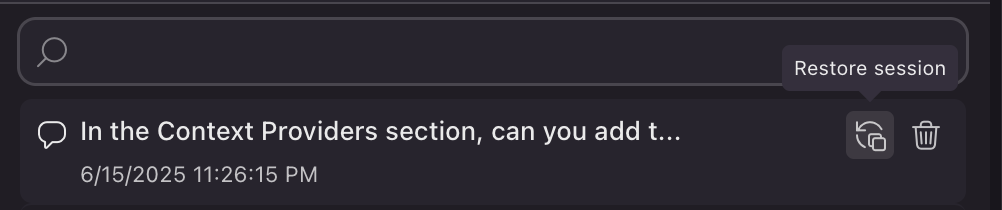
- **View History**: Access previous interactions and their outcomes through the `History` button
- **Task Tracking**: Monitor the progress of ongoing and completed tasks through the `Task list` button
### Workflow runs and step sessions
Declarative workflow runs belong to their parent chat session. Open the session's details rail, choose **Workflows**, and expand a run to inspect its step tree. Select a step to open that step's embedded chat in the details rail; reply there when the step pauses for input.
See [Run and manage workflows](https://kiro.dev/docs/workflows/manage.md#respond-when-a-step-needs-input) for monitoring and control behavior.
### Execution history
Kiro maintains a detailed history of sessions that includes actions taken such as code changes, commands executed,
search results, file operations, and more. You can search, restore, or delete a specific session.